The KeePassXC-Browser extension is installed within your web browser so that you can automatically pull usernames and passwords from KeePassXC and populate them directly into website fields. It is a very useful and secure extension that enhances your productivity while using KeePassXC. With this extension, you do not need to manually copy the data from your KeePassXC database and paste it into the website fields.
The KeePassXC-Browser extension is available on the following web browsers:
Google Chrome, Vivaldi, and Brave
Mozilla Firefox and Tor-Browser
Microsoft Edge
Chromium
Install the Browser Extension
You can download the KeePassXC-Browser extension from your web browser. To download the KeePassXC-Browser extension, perform the following steps:
Click the link corresponding to your browser:
Click the button to install/add the extension to the browser. Accept any confirmation dialogs.
| For the most up-to-date troubleshooting advice on all platforms, please read our Troubleshooting Guide. |
Configure KeePassXC-Browser
To start using KeePassXC-Browser, you must configure it so that it can communicate with the KeePassXC application on your desktop.
To configure KeePassXC-Browser, perform the following steps:
Open the KeePassXC application on your desktop and navigate to Tools > Settings.
Click the Browser Integration option on the left-hand side (1). The following screen appears:
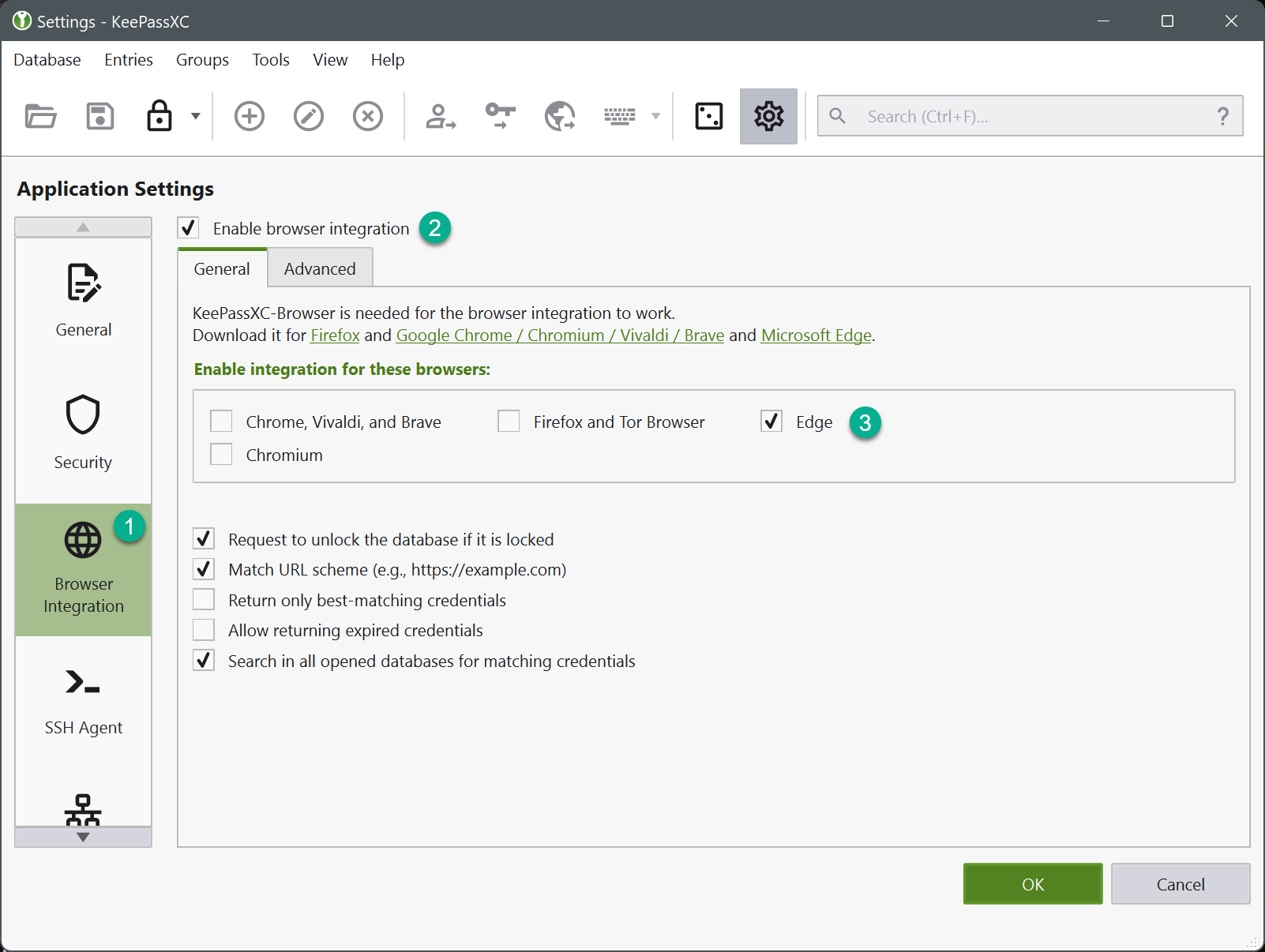 Figure 26. Browser Settings
Click the Enable browser integration checkbox (2). Then select the browsers for which you have downloaded the KeePassXC-Browser extension (3) and click OK.
Ensure your database is unlocked, then open (or restart) your browser.
Click the KeePassXC-Browser extension icon (A) in your browser (see figure below). A pop-up window appears.
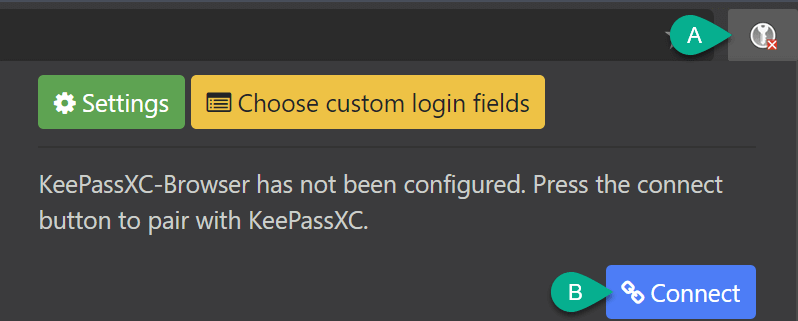 Figure 27. Connect Extension to KeePassXC
Click the Connect button (B) in the pop-up window to complete integrating the KeePassXC-Browser extension with your KeePassXC desktop application.
You are now prompted to enter a unique name to identify the connection between this browser and your database. Enter a unique name in the field (e.g., firefox-laptop) and click the Save and allow access button.
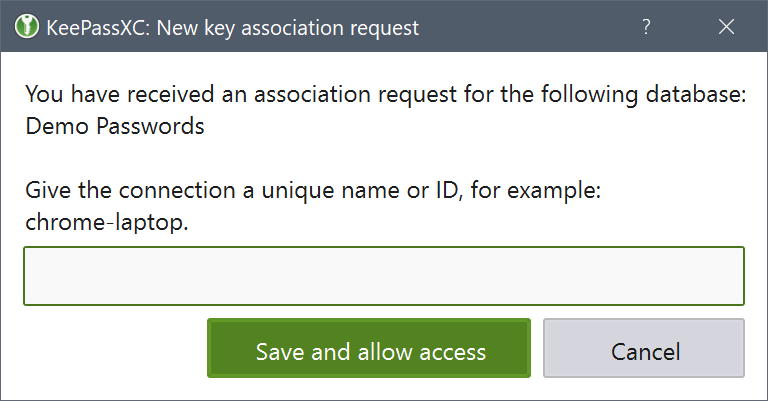 Figure 28. Extension Association Dialog
| If you reuse a connection name in a database, the previous browser connection will be overwritten and prevent access. |
Cet article a-t-il été utile ?
C'est super !
Merci pour votre commentaire
Désolé ! Nous n'avons pas pu vous être utile
Merci pour votre commentaire
Commentaires envoyés
Nous apprécions vos efforts et nous allons corriger l'article